
TABLE OF CONTENTS
Step-by-step tutorials below, along with videos of each process
Introduction
The Talonview mobile app allows for real-time collaboration between Talonview participants accessing the system from anywhere in the world. There are several different ways to communicate with our app to capture and organize close-out packages, communicate via live video, answer questionnaires, and much more.
The majority of Talon Tenants have closed registration, meaning that in order to access any sessions within a company's tenant, you must first be either invited to a session via SMS or email, or an administrator for that tenant has to set you up with an account and invite you to register.
An invitation is required to access any data in Talonview. New or returning users must Sign In with Phone or Email, using the same method that received the invitation.If an app user tries to sign in to the app before receiving a session invitation or a link to register, they will not have any tenants available to choose from and therefore will be unable to sign in to the app.
Device Compatibility
Compatible Operation Systems:
- iOS 15.1 or later
- Android 10.0 or later
Device NOT Supported
- Kyocera devices
- Any device on Huawei network
Downloading the App
In order to access any Talonview session from your mobile device, you must have the Talonview App downloaded to your smartphone. The Talonview app is free to download in both the Apple App Store and the Google Play Store.
Step 1 Search and download the Talonview mobile app.
A. For iPhone users, please click the App Store button below to find the Talonview app for download.
B. For Android users, please click the Google Play Store button.


Step 2 Once you have opened your device's app store, please download or install the application to your device.

New and Returning Users Invited via Phone Number
Step 1 Once you have downloaded the Talon mobile app, you can then open and select Sign In with Phone
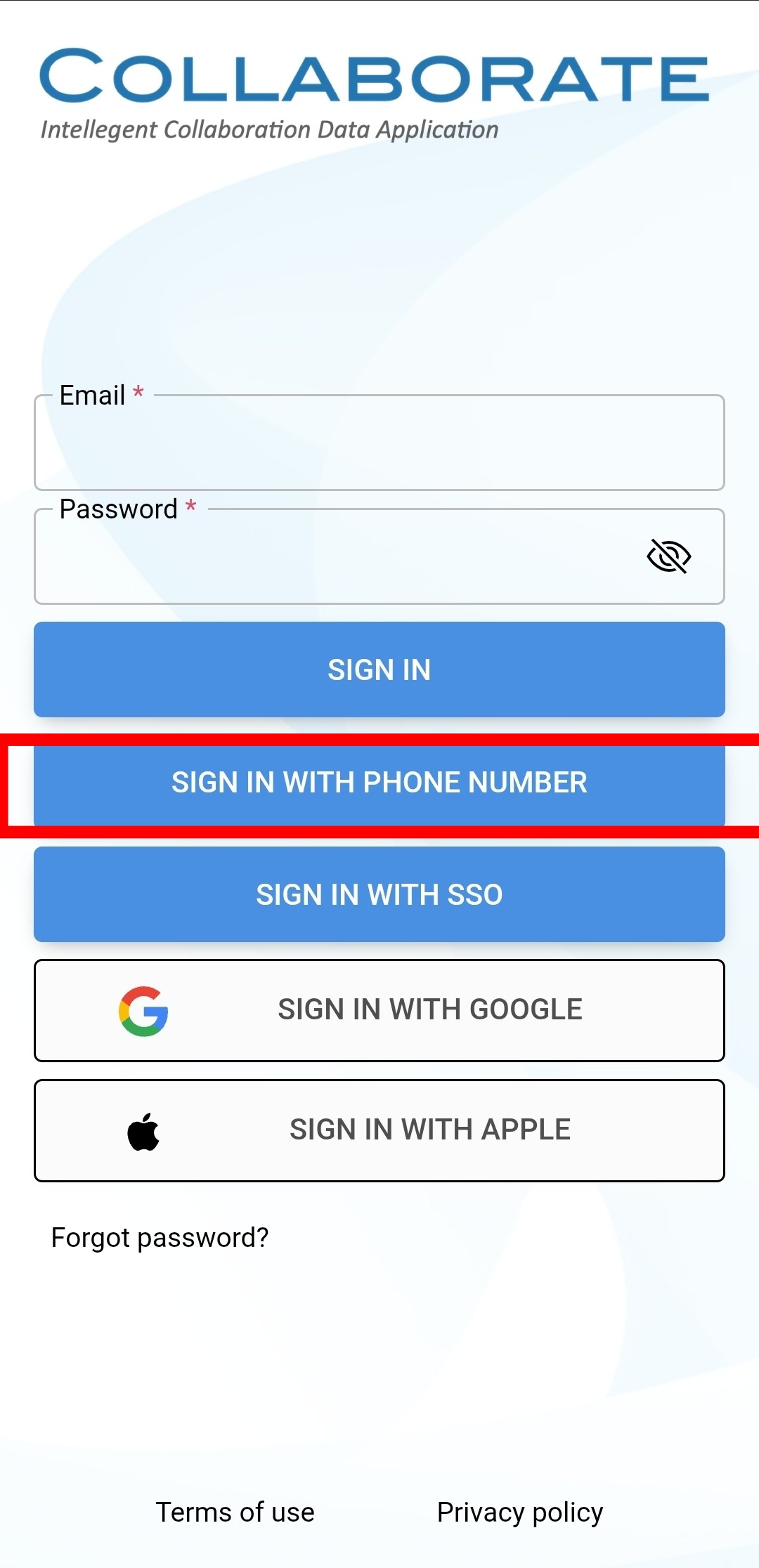
Step 2 Enter your phone number.
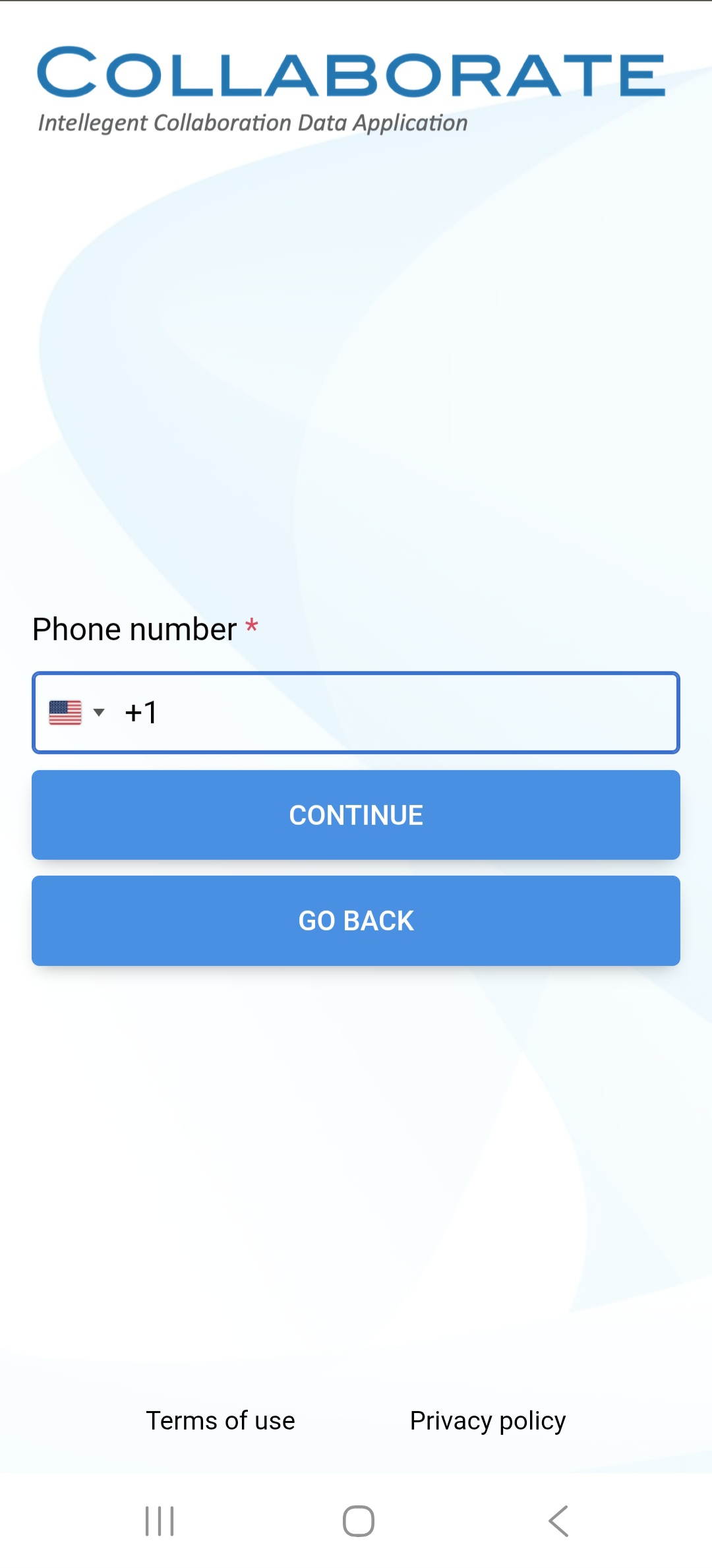
Step 3 Click Send verification code.
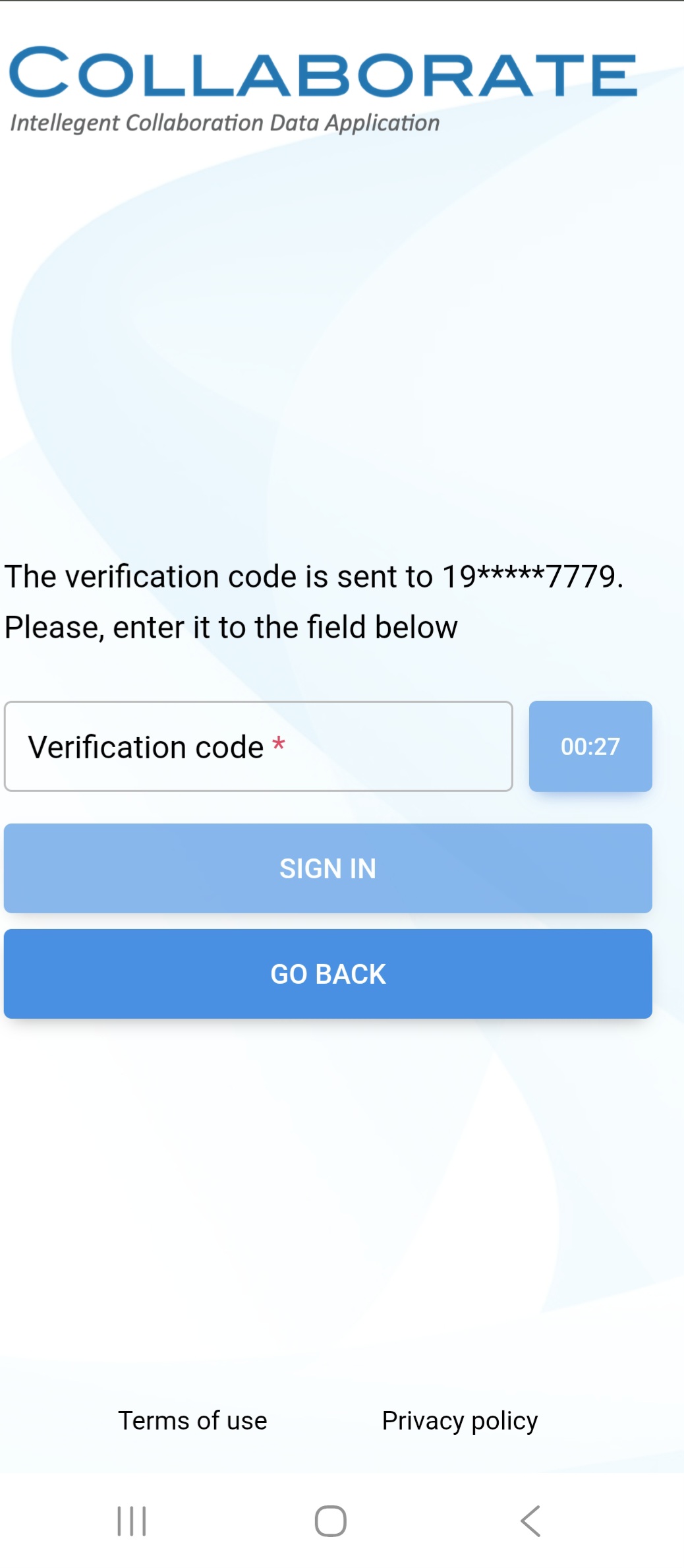
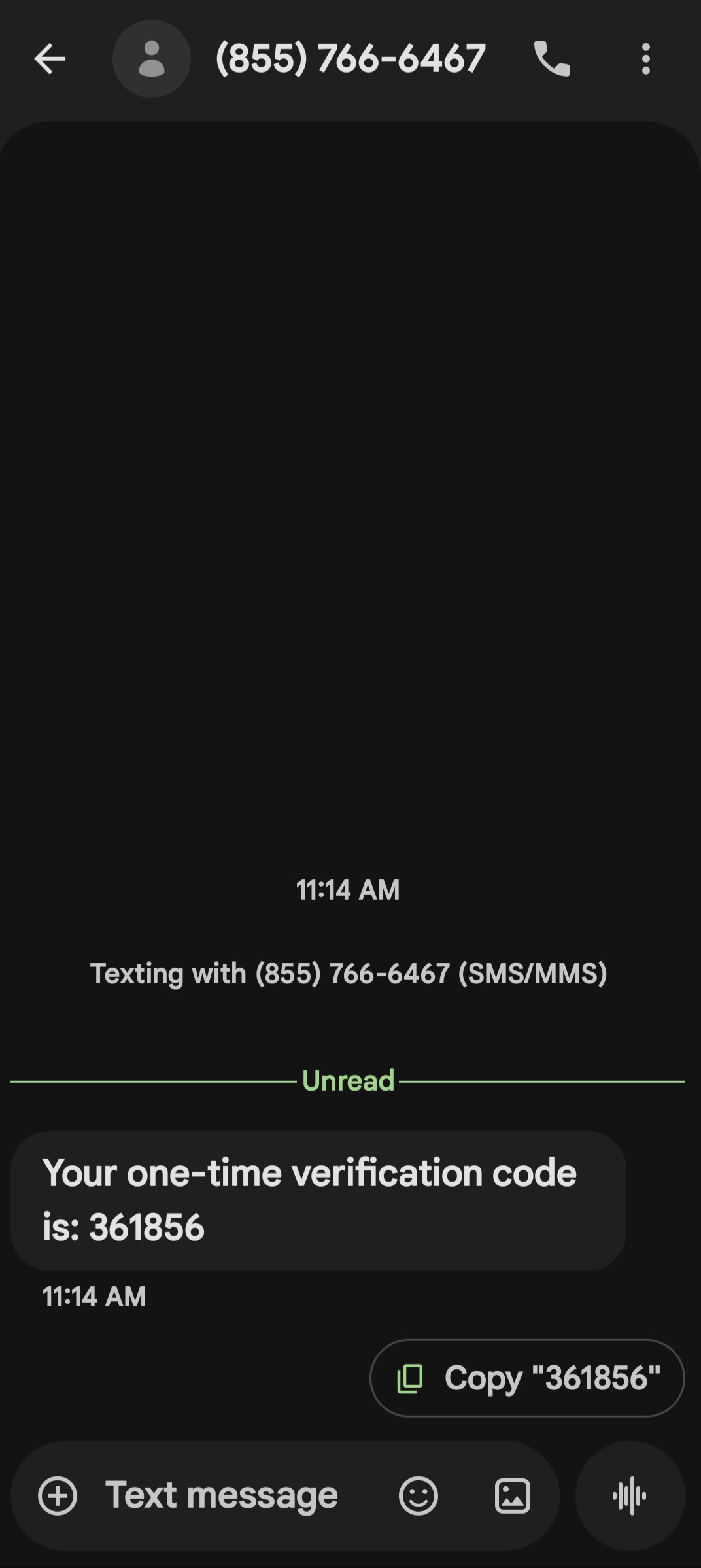
Step 4 You will then receive another SMS message with the verification code. Return to the app and enter this code in the designated field.
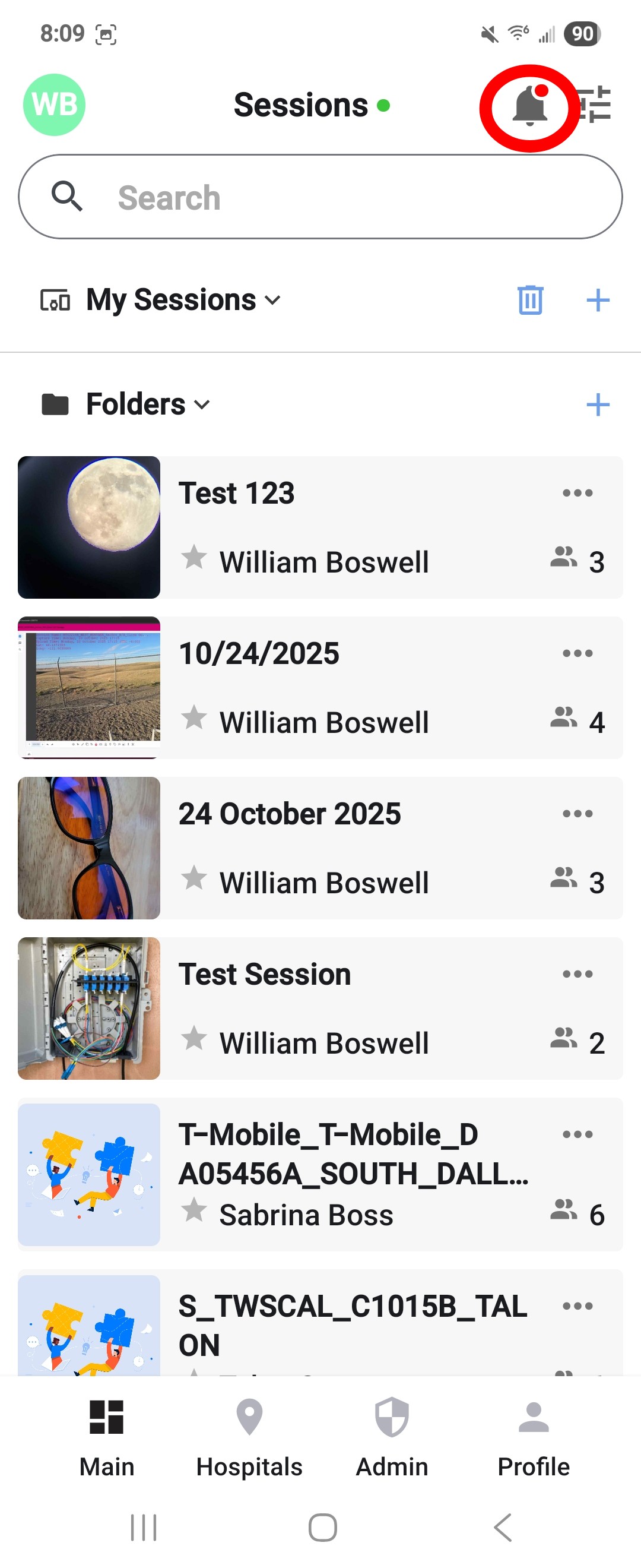
Step 5 Once logged in, click the Notifications icon in the top right.
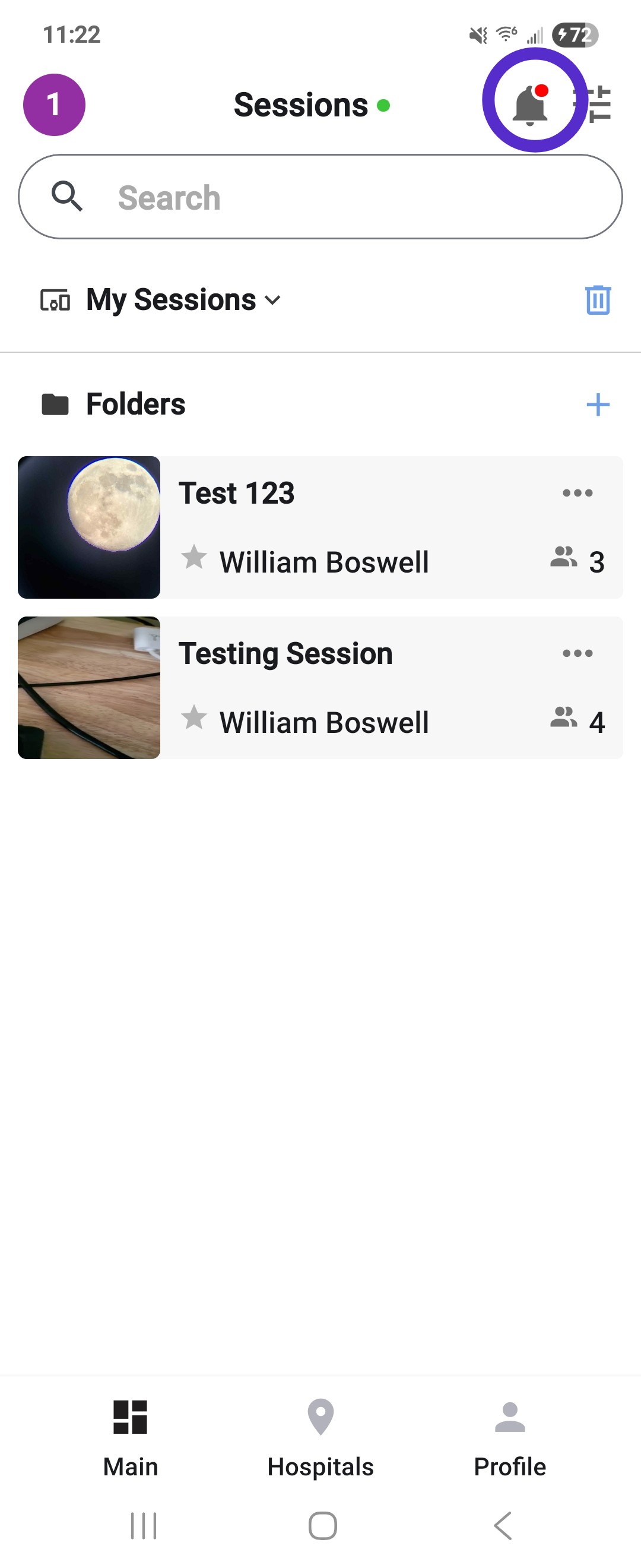
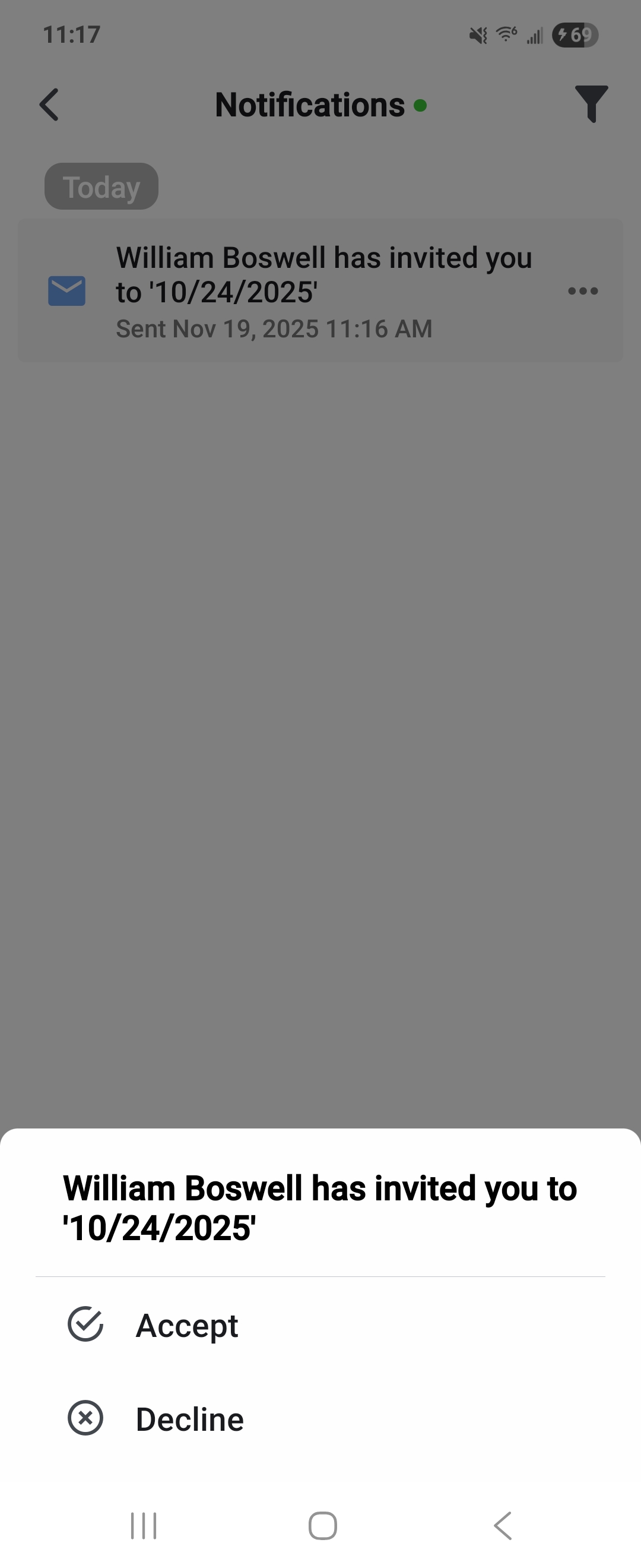
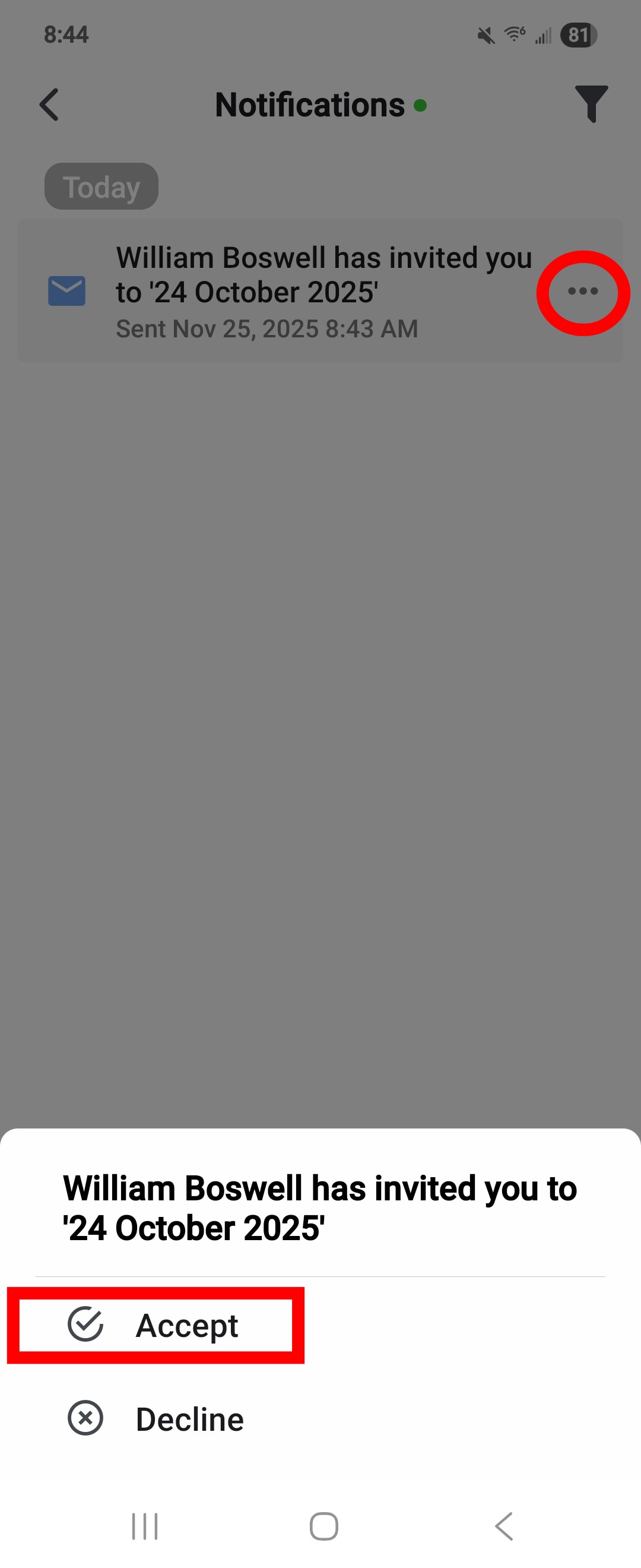
Step 6 You should see any new Invites to sessions here. Click the three dots to the right (...) and either Accept or Decline the invitation.
New and Returning Users Invited via Email Address
Registration is required for new users invited via email address.
Step 1 Once you have downloaded the app, please locate and launch the app on your device.
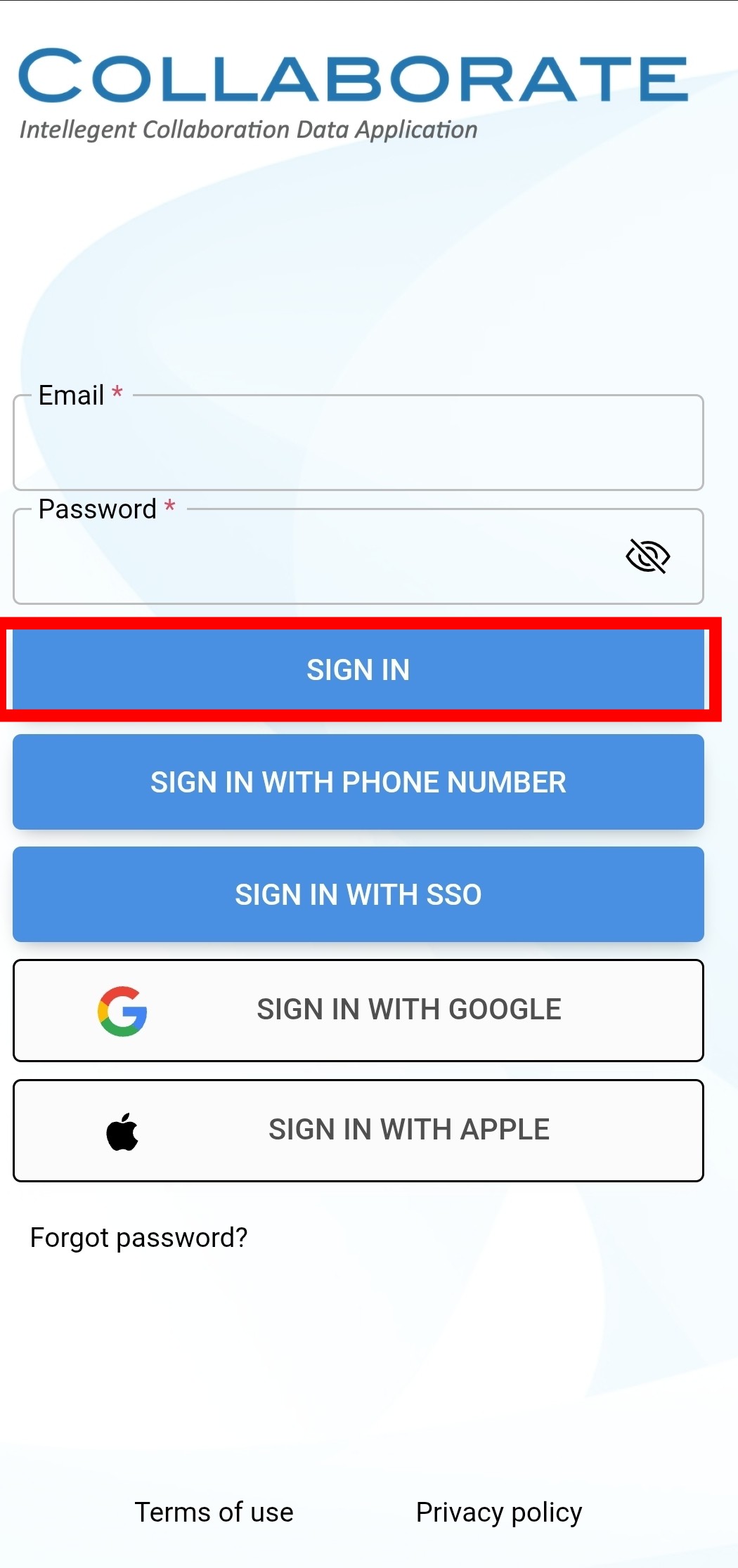
Step 2 Enter your email address and password. This information must match the address that received the invitation.
Step 3 The tenant page will load, showing you a list of tenants that you have been invited to. Here you can search and select the tenant you will be working in.
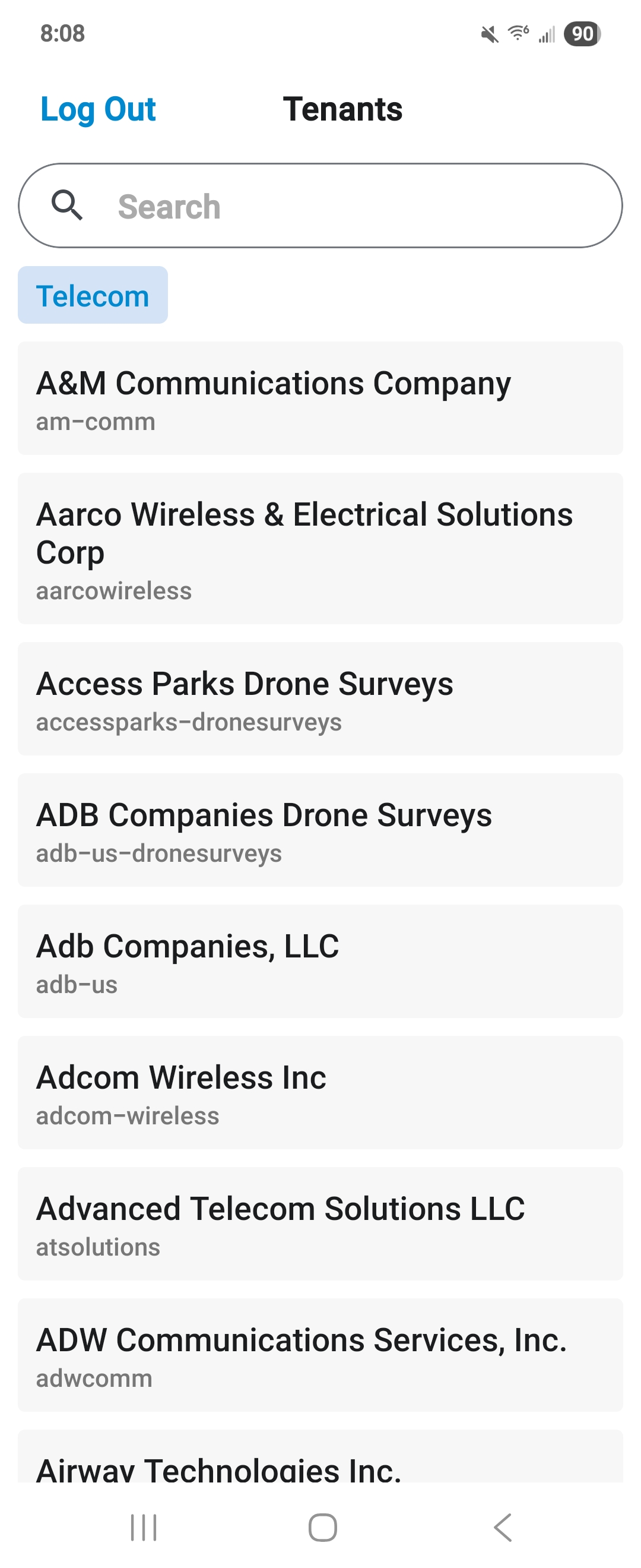
If the tenant you search for is not available - please ensure you have entered the correct login credentials. If you have logged in with a phone number, but were invited to a session by your email address, you will not see the tenant populate in the list. You must sign in with the same credentials that the invite was sent to in order to see the tenant appear.
Step 4 Once you have found your tenant, your Sessions page will load, with a list of the sessions you have worked in previously. Click the Notifications icon in the top right.
Step 6 Any new sessions will appear here. Click the three dots to the right of each session to Accept or Decline the invite.
TIP #1 Users who are invited to Talonview sessions via email address also have the option to access their session using the web interface. To log in to an account on the web, simply go to that Tenant's URL and log in using the same credentials set during registration.TIP #2 Once you have installed the Talon mobile app, please ensure all permission settings are set to allow cellular data, camera, camera roll/gallery, mic, and location for full functionality in the platform.